

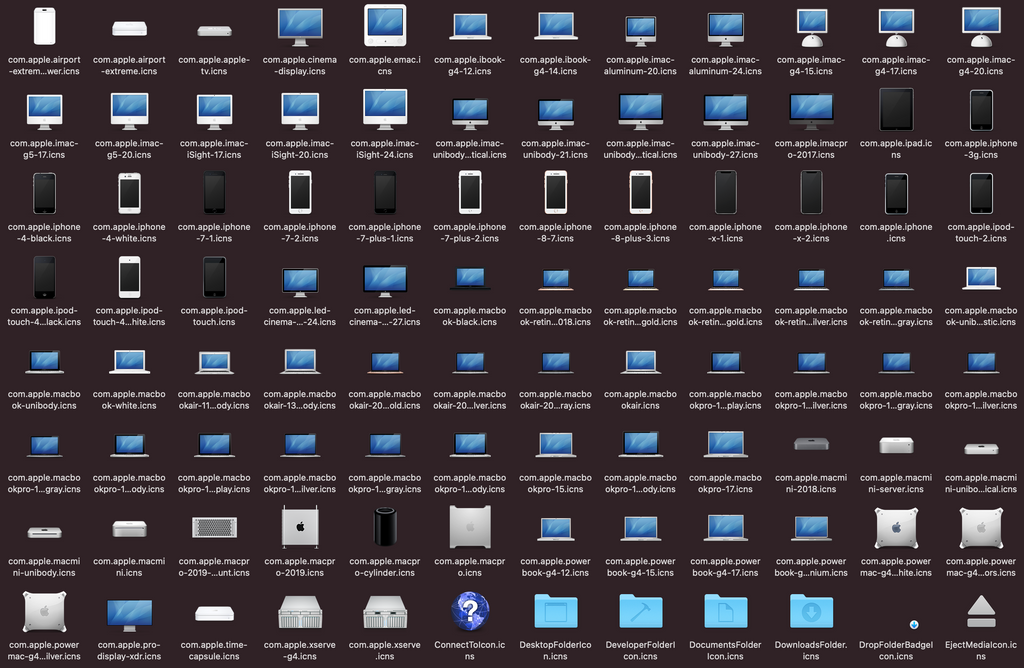
Your Mac may contain icons for Apple hardware much older than the computer you’re using. They live inside system bundles, alongside everyday folder and drive icons. Here’s where to look, how to copy them and why the selection varies between macOS versions.
A little hardware history
For years, Mac system icons were stored plainly as .icns inside files like:
/System/Library/CoreServices/CoreTypes.bundle/Contents/Resources/Inside that folder, you could find icons for MacBooks, iMacs, power supplies, disk drives, and even Windows PCs (yes, Apple gave a stylized CRT + blue screen icon for PC). Many macOS enthusiasts have used this path to pull out retro hardware icons.
How to browse the icons
- In Finder, navigate to
/System/Library/CoreServices/CoreTypes.bundle - Right-click → Show Package Contents
- Go to
Contents/Resources - Browse the
.icnsfiles. Names often hint at the device or object they represent, but the exact selection depends on your macOS version.
Copy readable files into a folder of your own and open them in Preview. You can export a copy as PNG; you normally don’t need administrator privileges to read these resources.
Why the contents vary between macOS versions
Apple has changed how it stores system artwork over time. Depending on your macOS version:
- Some artwork lives in
Assets.carcatalogues rather than separate.icnsfiles. Both formats can coexist.
- The UI often uses an icon template + glyph overlay, dynamically compositing folder icons (so you might not see the raw
.icns). - Other resources may live in sub-bundles or frameworks. Treat any path you find online as a starting point: it may have moved or disappeared on your version.
- System Integrity Protection and the sealed system volume protect system resources from modification. Browsing readable files and copying them elsewhere are different operations.
- Some older icons in the
Resourcesfolder remain, but might be legacy (not actively used in UI).
Tips to Find Newer / Hidden Icons
- To list the separate icons, run:
find /System/Library/CoreServices/CoreTypes.bundle -type f -name "*.icns" - If a resource is missing, explore the bundle’s subfolders. Paths under
/System/Libraryvary between releases, so check that a folder exists before searching it. - For
.carfiles, Asset Catalog Tinkerer can inspect and export supported assets. Work with a copy of the catalogue.
Safety & Respecting the System
- Don’t modify the original bundle icons in place unless you know what you’re doing and understand the risks (especially on newer macOS).
- Always work on copies of the
.icnsor.carfile. - Keep SIP enabled. Viewing or copying readable icons does not require disabling it.
- In macOS Big Sur+ many system icons or templates cannot be replaced easily — changing them may have unwanted side effects.
Enjoy!


Stay curious. Stay nostalgic.
Because retro never dies, it just respawns.
Leave a Reply